decoder
ambisonics out to loudspeakers or headphones, with head tracking
The decoder plays ambisonics on headphones as binaural, on loudspeakers, or on both at once, with head tracking.
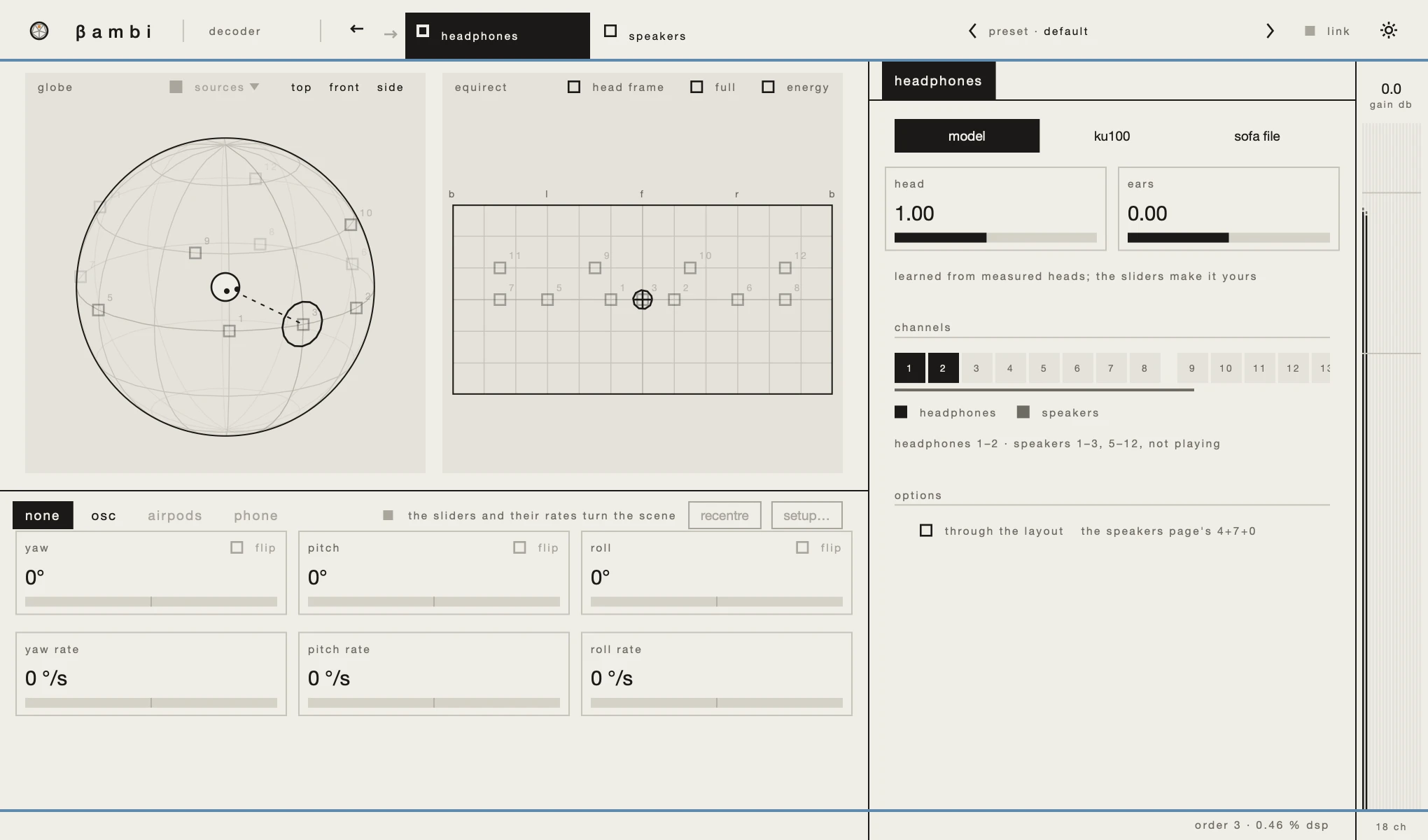
Its window is the one every bambi plugin has, with more of it its own than in any other plugin: outputs in the header, and head tracking where the others have their matrix. The 3D view, presets and the link are explained in the window.
outputs

Where the other plugins have their instances, the decoder's header has its two outputs,headphones and speakers; with another decoder in the session, a switch beside them shows and edits that one. The box switches an output on; the name opens its page in the panel. Both can play at once, each on channels of its own. If both are set to the same channels, the page warns you and says what would happen on playback.
headphones
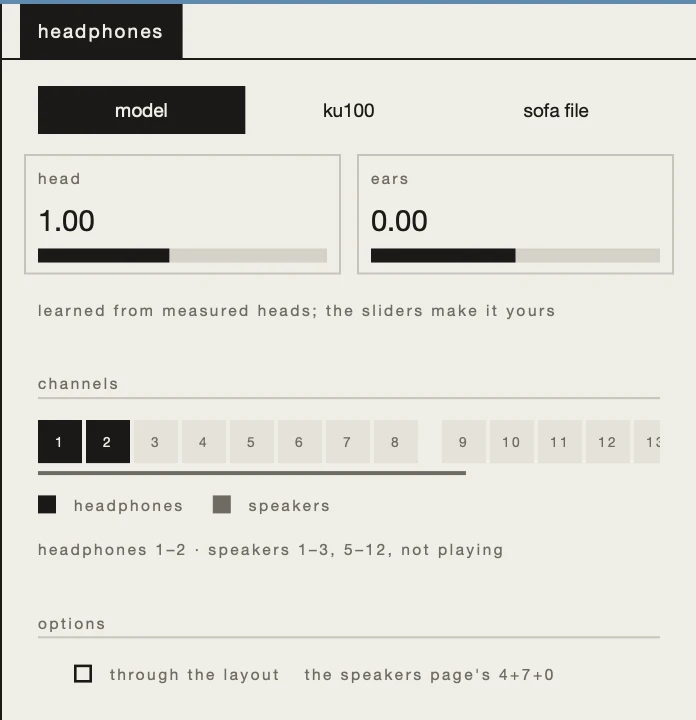
The HRTF used for binaural playback:
modelis an HRTF learned from measured heads, and two sliders personalise it:head, 0.75 to 1.3 ×, scales the time and low-frequency level difference between the ears, andears, ±2 erb, shifts the spectral notches of the ears.ku100is a measured dummy-head HRTF, andsofa fileloads any measured HRTF. With a measured HRTF the ears stay as measured, andheadscales only the time difference.- channels: the pair of host channels the headphones play on.
through the layoutplays the speaker layout virtually on the headphones, so you can hear the loudspeakers without them.
speakers
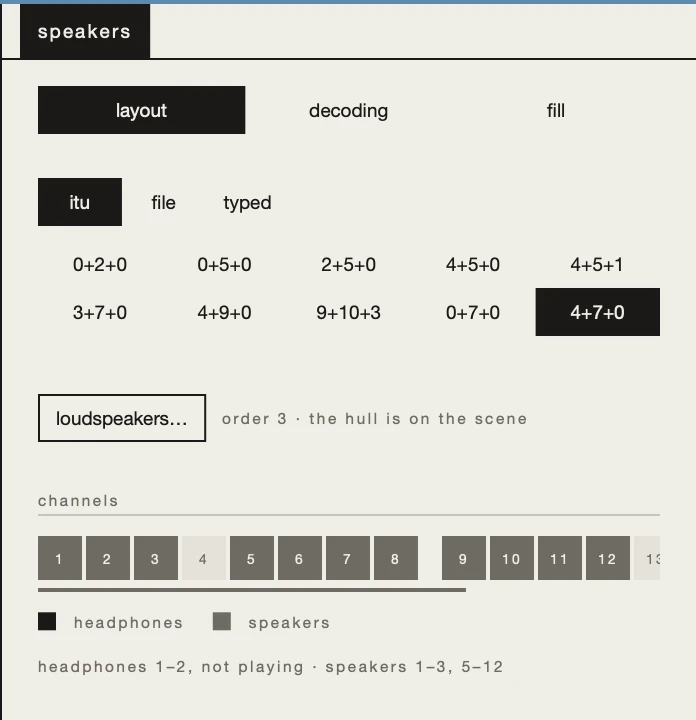
The speakers page opens on three sub-tabs: layout, below,decoding and fill, next. On layout, the loudspeaker layout is set in one of three ways:
itu: ten layouts built in, from0+2+0to9+10+3.file: an IEM AllRADecoder or AmbDec layout, decoded by bambi, or a complete decoder as SOFA filters, used as is.typed: the table is the layout. A loaded one becomes typed the moment you edit it there; a new one starts empty.
loudspeakers… opens the table. channelsshows the bus's channels and what plays on each, and a line names each output's channels: the layout's move as a block, so a headphone pair or an interface's own outputs can come before them. An output that does not fit is marked not playing.
decoding
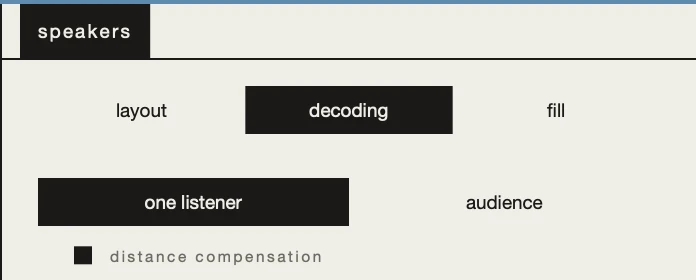
Whether the decoding is weighted for one listener in the sweet spot or an audience, and distance compensation, which gives every loudspeaker the gain and delay that bring it to the farthest one's distance. A layout of two loudspeakers has its own choice instead of the weighting:fold puts the whole sound scene on the pair, and slice plays only what the listener faces, between them.
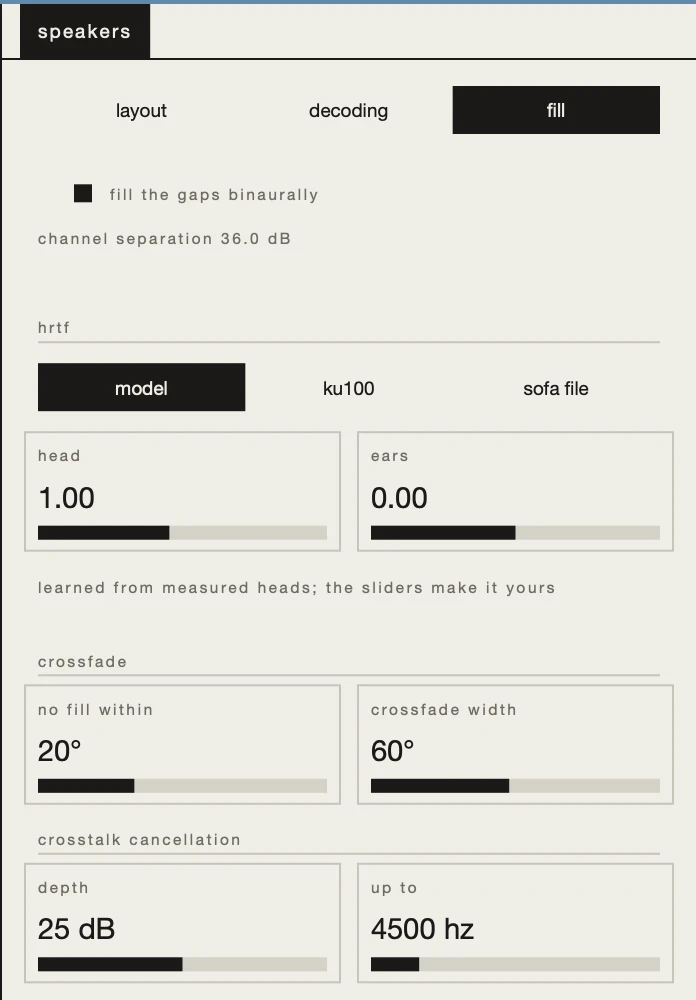
fill
Most layouts leave part of the sphere uncovered: a stereo pair everything outside the arc between its two loudspeakers, a 5.1 or 7.1 ring what is above and below, a dome what is below. fill the gaps binaurally plays those directions binaurally on the same loudspeakers, through crosstalk cancellation, so each ear hears its own channel. What the layout covers plays exactly as before. It is for one listener in the sweet spot, facing the layout as it was measured, and it is off by default.
- The channel separation: with the fill on, the line under the switch shows how well the loudspeakers keep each ear’s channel out of the other ear. Below 25 dB (all loudspeakers on one side, or on the median plane) the fill is refused, and the line says so.
hrtf: the HRTF the binaural part uses, the same choice and sliders as on the headphones page.- crossfade: within
no fill withinof the covered directions only the loudspeaker decode plays (20°);crossfade widthis how wide the fade to binaural is beyond that (60°). - crosstalk cancellation:
depthis how hard it cancels (25 dB): less sounds closer to plain binaural on loudspeakers, more relies more on the listener sitting exactly in place.up tois the highest frequency it cancels (4.5 kHz): above about 6 kHz the cancellation of a narrow pair rings.
With the fill on, the decoder's latency is 256 samples instead of 64, on every output, and your DAW is told. The fill keeps the level: switching it changes the sound, not how loud it is. A pair whose gaps are filled plays its fold.
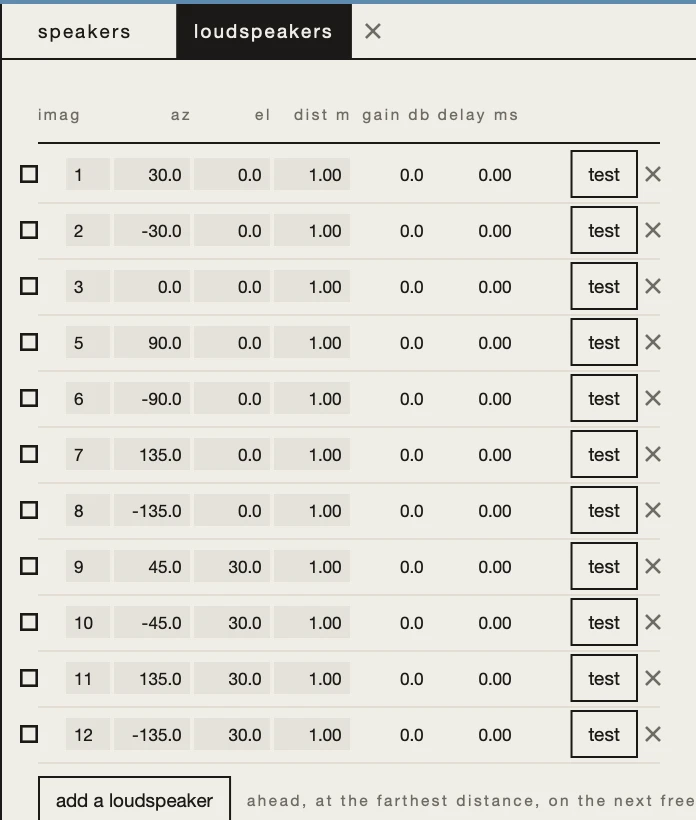
loudspeakers
loudspeakers… opens the table, one loudspeaker to a row:
- Drag a number as you drag a tile: its channel, azimuth, elevation and distance. Gain and delay are what distance compensation gives it, and are read only.
- The box at the left makes a loudspeaker imaginary: it shapes the layout but is never fed.
testsends a burst on that loudspeaker's channel alone, so you can check each by ear.- The cross removes the row.
add a loudspeakeradds one ahead, at the farthest distance, on the next free channel.
orientation
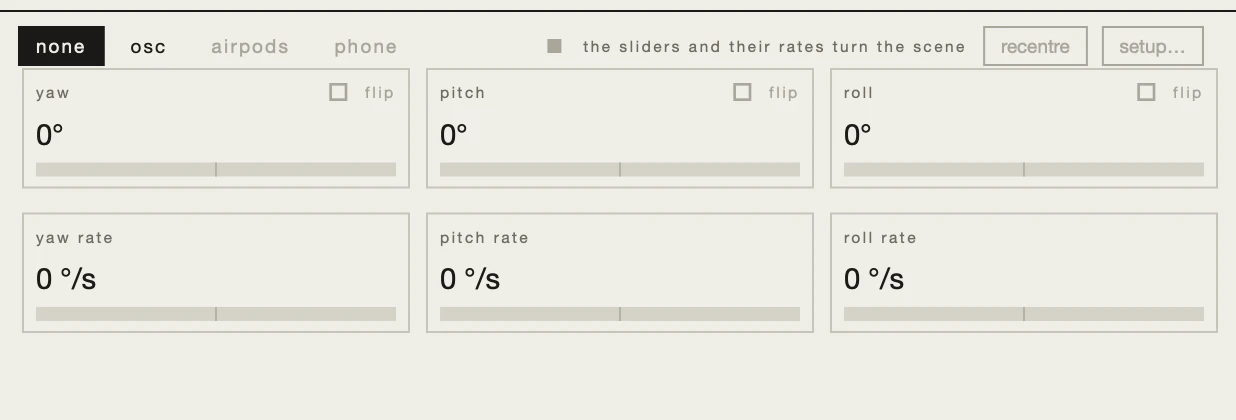
Where the effects have their matrix, the decoder has head tracking, always on screen. The sliders and rates rotate the sound scene for every output; a tracker that tracks the head rotates the headphones, and a two-loudspeaker layout set to slice.
- The head tracker:
none,osc,airpodsor aphone. AirPods and a phone connect through a helper app that comes with the decoder, on macOS. Beside the tabs, the tracker shows whether it is sending data, and at what rate. recentremakes the direction you face now the front, andsetup…opens the tracker's own page beside the output's: the OSC port and message, the AirPods' look-and-nod, or the code a phone scans. There ittracks the head, compensating your head movement so the sound stays put in the room while you turn, orrotates the scene, one more rotation of the sound scene for every output.yaw,pitchandrollrotate the sound scene manually, each with a rate under it.flipbeside an angle inverts the tracker on that axis, and a double-click on an angle resets it and what its rate has added.
the 3D view
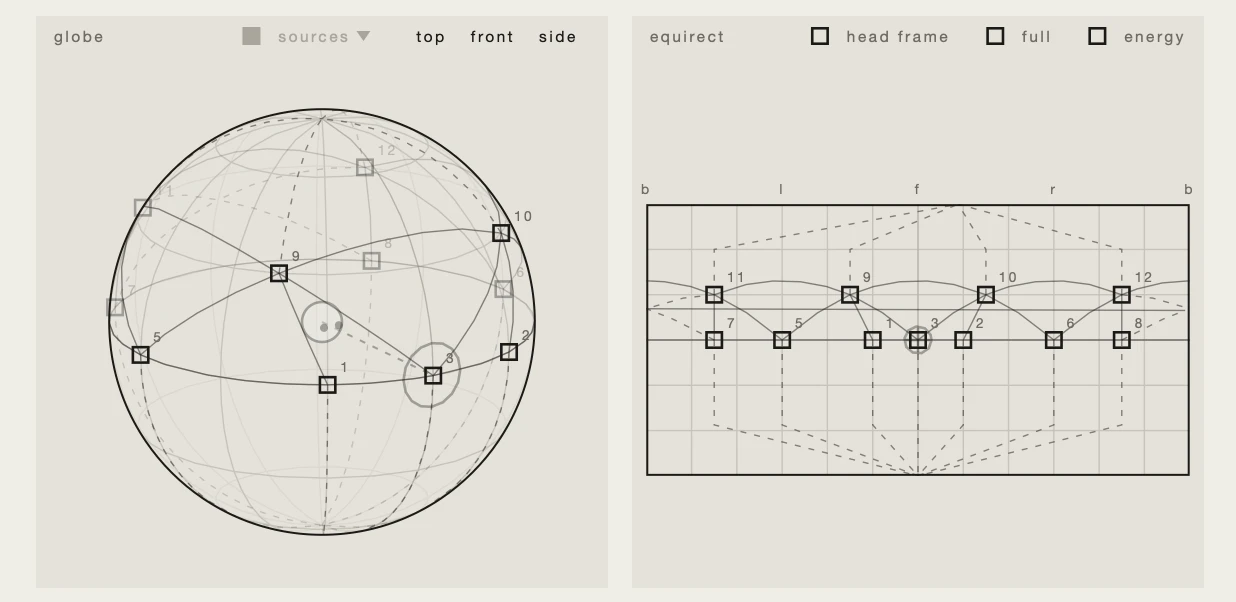
The decoder draws the listener's head at the centre — on the globe with its eyes on either side of the look direction, on the equirect as a cross at the look direction — and the numbered loudspeakers around it. While the speakers page is open, the convex hull between them is drawn too. An output that is not playing is drawn faint, and an imaginary loudspeaker dashed. The energy display shows the signal every output receives. Two switches are the decoder's own:
head framedraws the 3D view from the head's point of view: the equirect's front follows the look direction.sourcesshows where the session's sources are, rotated with the sound scene.
things to try
- A stereo pair that follows your head. On the speakers page choose
0+2+0andsliceondecoding, then a tracker that tracks the head: the pair plays only what you face. - Loudspeakers on headphones. Choose a layout on the speakers page, then switch on
through the layouton the headphones page to hear it before you set it up. - Sound from above on a 7.1 ring. Choose
0+7+0, openfilland switch onfill the gaps binaurally, then sit in the sweet spot and move a source over your head. - Rotate the sound scene, not the head. Give
yaw ratea value and press play: the whole sound scene rotates around you, on every output.