the host
setting up a set to play through bambi
The host plays a Live set’s tracks through bambi’s plugins and decoders, routed as ambisonics rather than as stereo, while Live keeps the arrangement and the transport.
It runs on macOS, with Ableton Live. This page walks through setting a set up, in the order you need each part. The plugins’ own windows, which the host opens from its sidebar, are explained intheir tutorials.
in Live
Live plays into the host through bambi’s virtual audio driver, and a Max for Live device on Live’s main track connects the two. The installer puts the host and the driver in place; open bambi live hostfrom Applications once, and it puts the device into Live’s browser, under Max for Live › Max Audio Effect › bambi.
- In Live’s audio settings, choose bambi as the audio device. In Output Config, enable its channels as stereo pairs; in Input Config, 1/2, which carries the binaural mix back for recording.
- Put the bambi device on Live’s main track. It needs Live Suite, or Live Standard with Max for Live. It starts the host if it is not running, or open host does by hand; the square beside its status fills once the two are connected, and show host brings the host to the front.
- Choose on the host’s routing page, below, which tracks play through bambi. The device routes them in Live and lists the set’s tracks, in their colours while bambi plays them; when bambi stops, every track’s routing goes back to what it was.
While bambi plays, the device keeps a bambi track that records the binaural mix. A track that already played to bambi’s channels before is shown, never moved.
the tracks
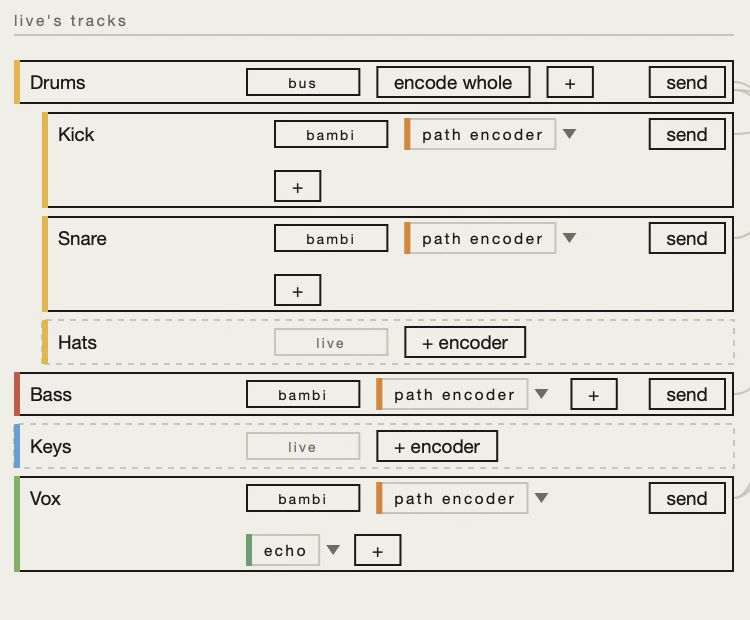
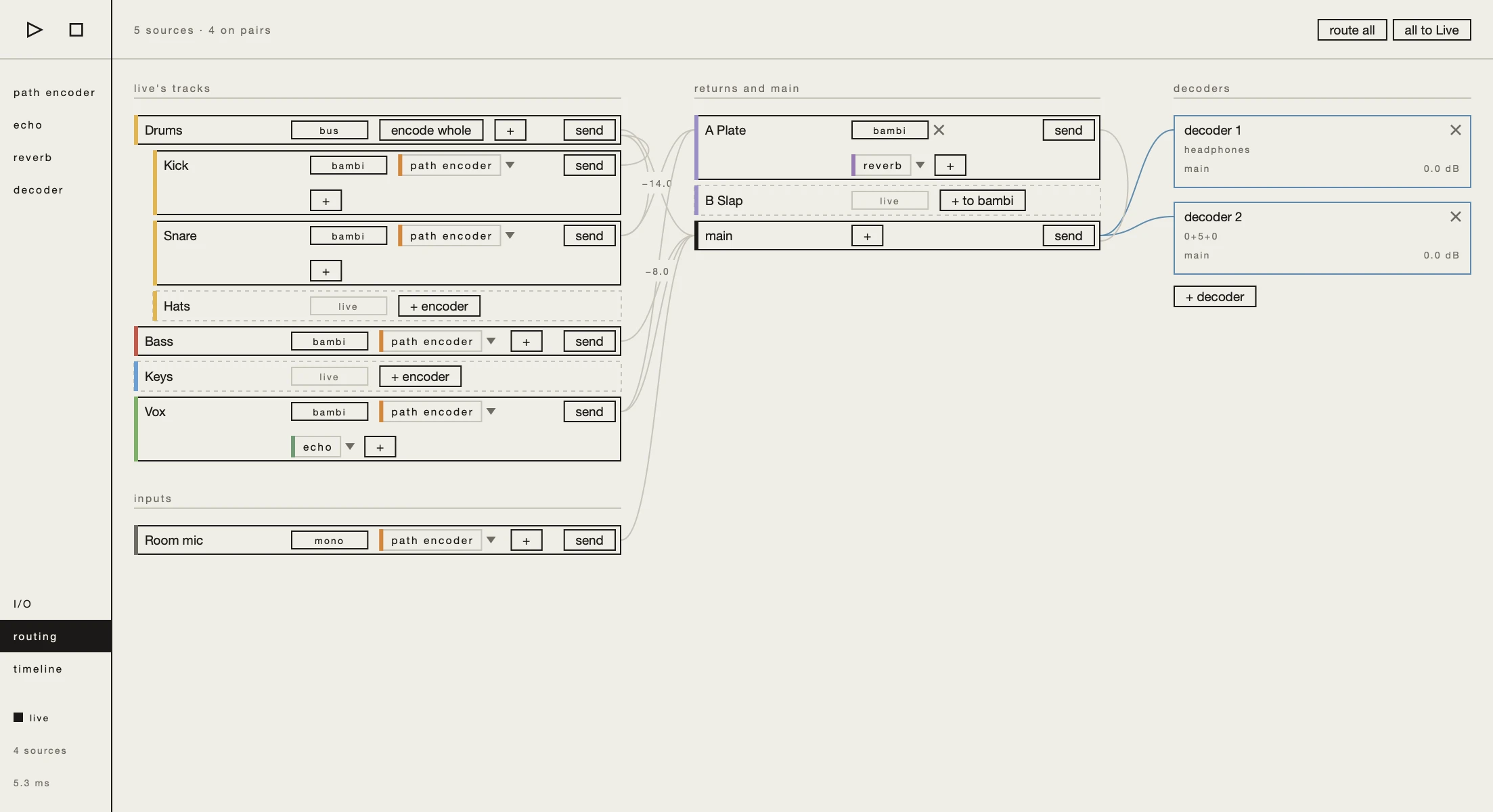
The routing page lists Live’s tracks and groups as Live files them, and the host’s own inputs under them. A set opens with everything left in Live; route all takes every track into the ambisonics bus at once, and all to Live gives them all back. Each track’s marker says where it plays:
live: left in Live, mixed there as before.bambi: played by bambi, through an encoder.bus: a group split into its tracks, each encoded; encode whole makes it one source again.in group: a track its group plays.no pair: taken into bambi, but no stereo pair of bambi’s virtual audio driver is free, so it is silent.no audio: a track with no audio to route, such as a MIDI track without an instrument.not to Main: a track whose output in Live is not Main; route it to Main to take it into bambi.
+ encoder takes a track into bambi; a track tagged no audio or not to Mainhas none, since it cannot be encoded. After the encoder come its inserts: +adds one, a click opens it, and a drag moves it along the chain.
returns and main
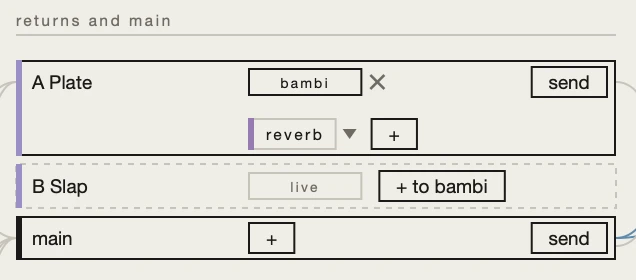
Live’s returns and its main stand in the middle. A return left in Live has + to bambi, which takes it into the ambisonics bus with insert effects of its own, such as a reverb on a plate; its cross gives it back to Live.
sends
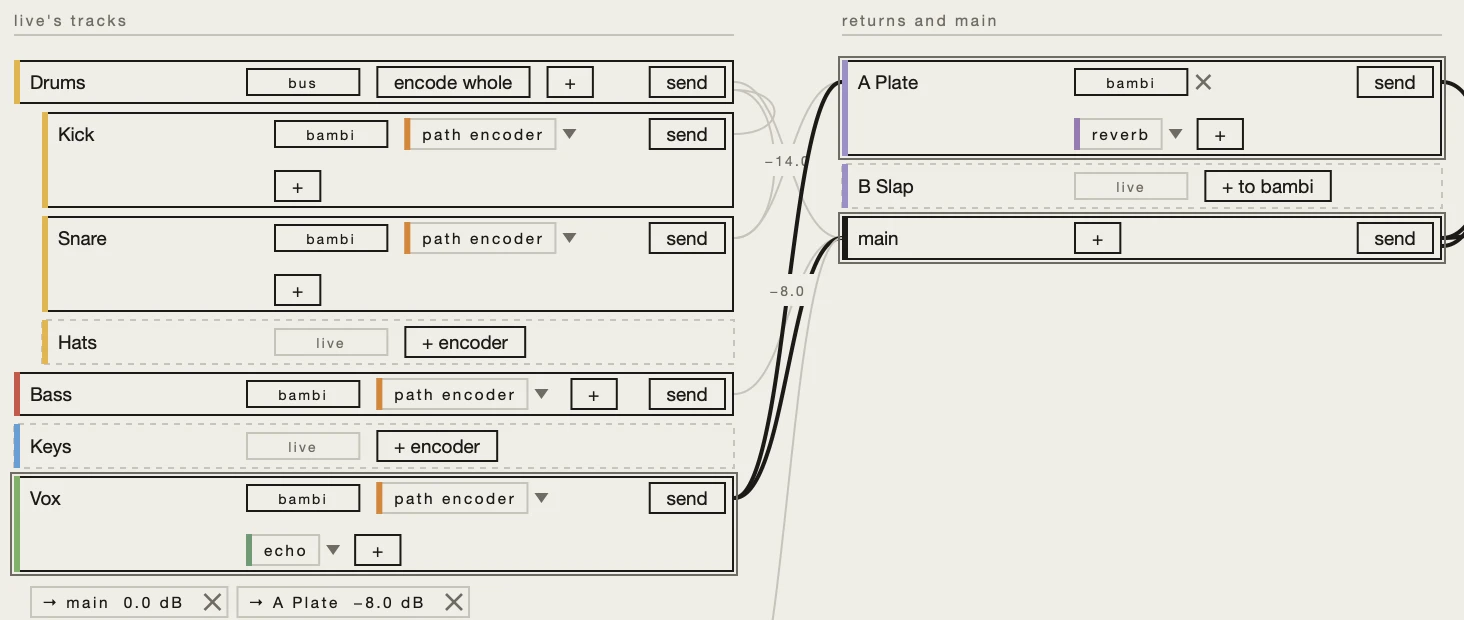
A track reaches a return, main or a decoder through a send:
- Press send on a track, and what it can reach lights up. Click one to make the send, at 0 dB.
- Click a track’s name to select it: what it reaches lights up, and its sends open under it as chips. Drag a chip to set its level; its cross removes it.
decoders
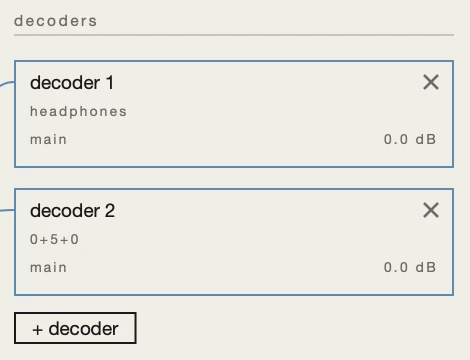
On the right are the decoders, where the ambisonic signal leaves the host. + decoder adds one, and each gets its own mix through its sends. A decoder’s box shows its output, and what it receives at which level; a click on its name opens its own window, which sets its headphones and its loudspeakers.
I/O
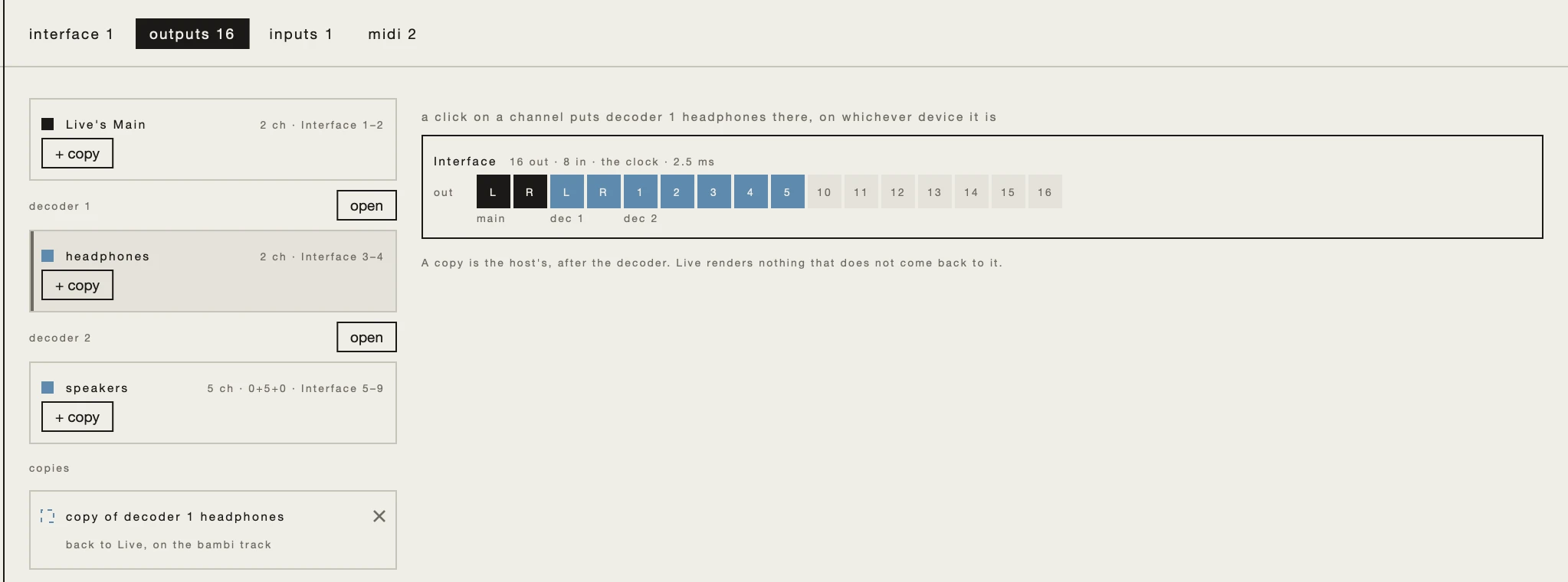
I/O, in the sidebar, opens the page for everything going in and out, in four tabs:
- interface: the devices the host plays out of, the first of them the clock source; the host’s buffer size; and the ambisonic order, with the CPU load it costs. The rate is Live’s.
- outputs: Live’s main and every decoder’s outputs, each on its channels; choose one, and a click on a channel of the interface puts it there. + copysends the same signal to other channels, or a pair back to Live’s bambi track for recording; Live renders nothing that does not come back to it.
- inputs: the host’s own inputs, as the microphone on the routing page.
- midi: every MIDI input the system has. Every instance receives all of it.
the timeline
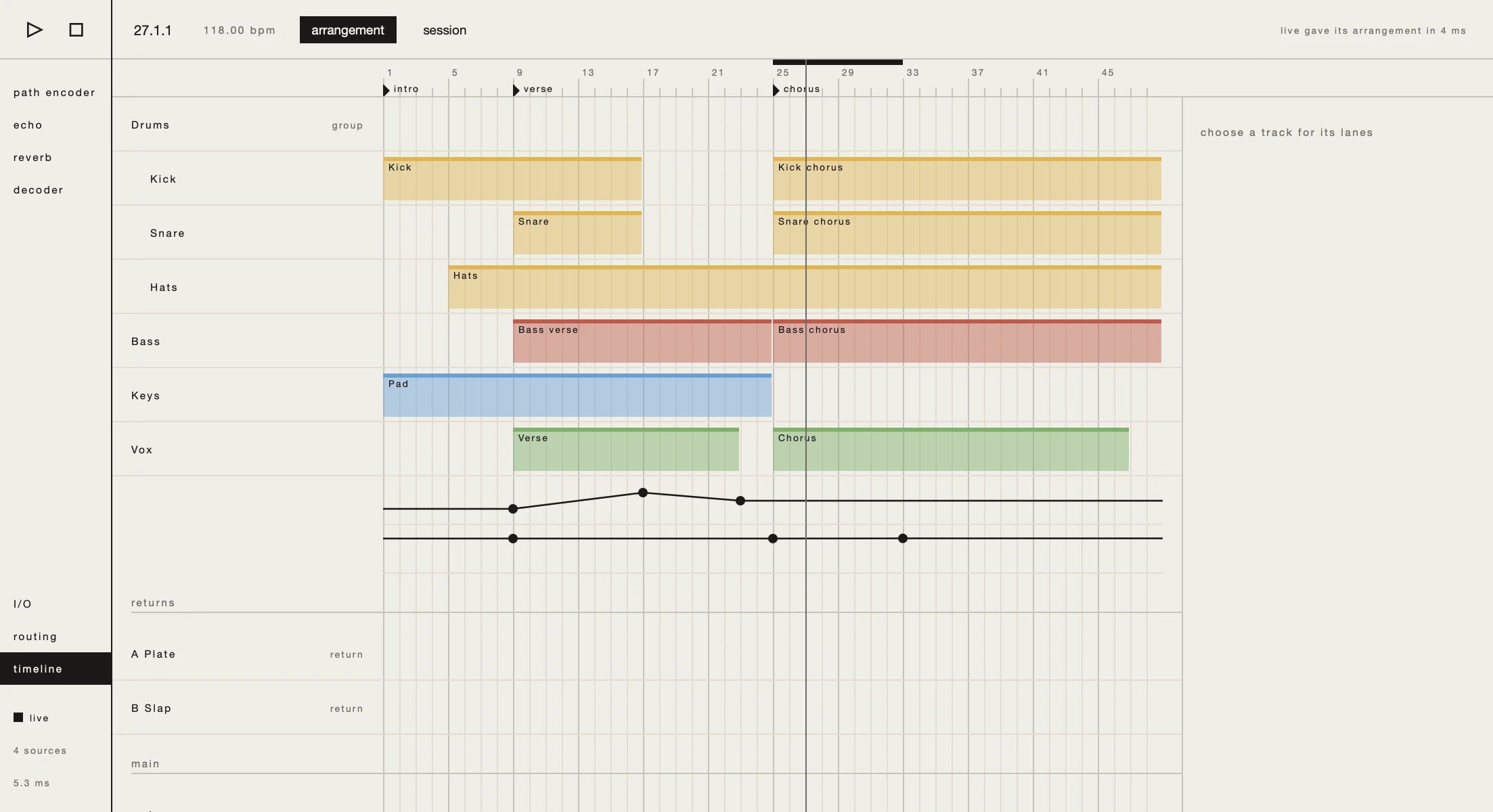
The timeline shows Live’s set as the host plays it. play and stop, at the top of the sidebar on every page, drive Live’s transport; a click on the ruler locates, and the playhead stays in sync with what you hear.
- arrangement: Live’s clips, a row per track. Choose a track: the panel on the right lists its automation lanes and adds one with + lane, each lane one parameter of anything the host plays, drawn under its row. A click puts a point, a drag moves it, shift without snapping, and a double-click removes it.
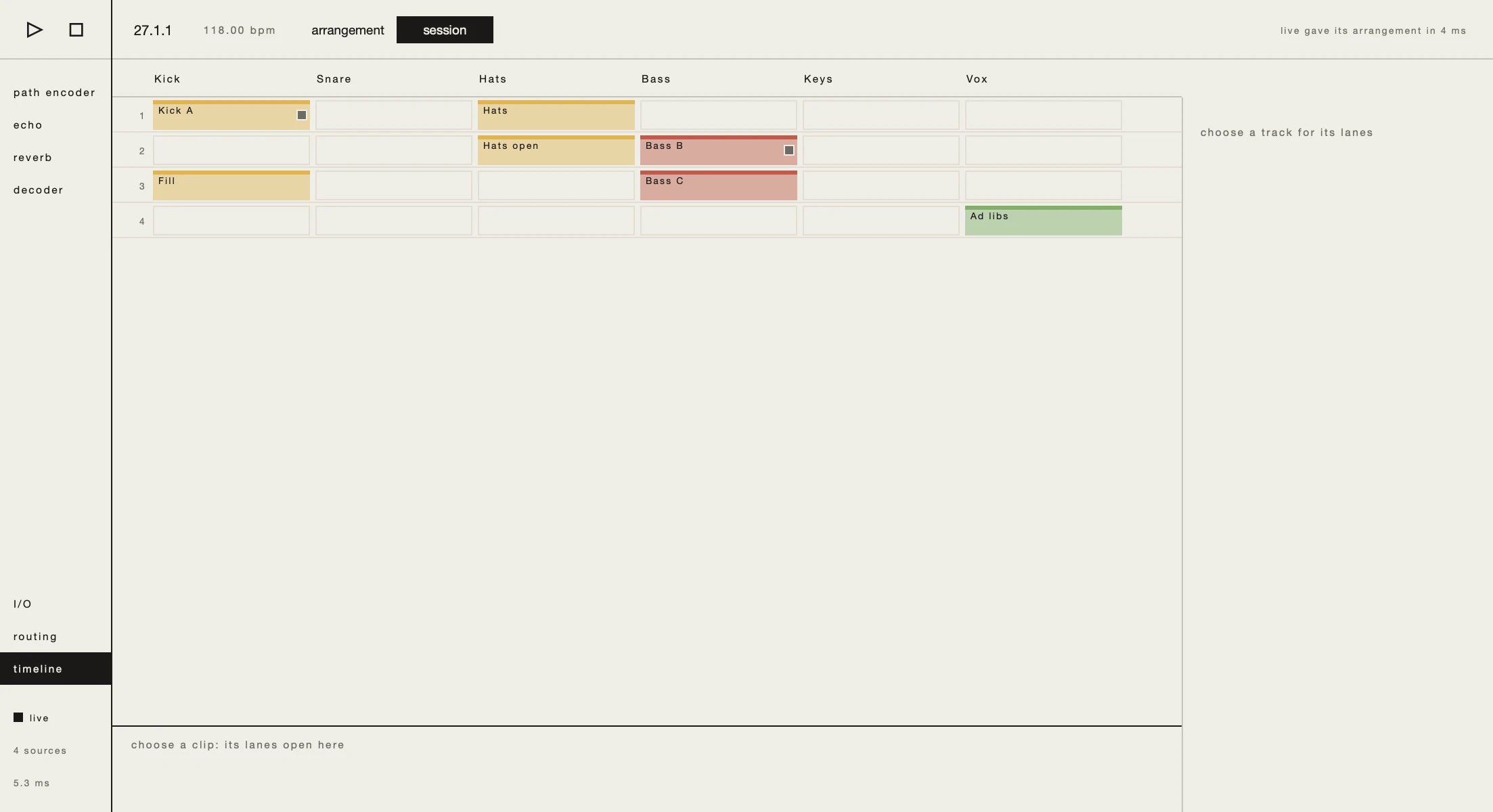
- session: Live’s grid, a column per track and a row per scene. Choose a clip, and its own automation lanes open at the foot, following the clip as it loops.
things to try
- One track into ambisonics. Press + encoder on a track, open the path encoder from the sidebar, and draw it a path.
- A room for everything. Take a return into bambi with a reverb on it, then send each track to it.
- Headphones and loudspeakers at once. Add a second decoder, give one headphones and the other a loudspeaker layout, and set their channels in audio settings.